Oct 20, 2010

Add “Run” To Windows 7

I have never blogged on this topic before because I figured most people already knew this, or didn’t care. It turns out that a few of you still don’t know that the Run line in Windows never went away, they just hid it. Why? I don’t know. I just work here!

When someone describes how to open a command prompt in Windows what do they say to do? Click Start >Run type in CMD and press OK right? Or at least something similar to that. Sure by default you can type CMD in the search box and get the same thing, but what if you want to browse the admin share on another computer in the network? The search box doesn’t help you there.

To turn “Run” back on in Windows 7 is pretty easy though so don’t fret. Just do the following:

  • Right click on Start and click on Properties

properties

  • On the Start Menu tab click Customize

customize

  • Scroll down the list and check the box for Run command then click OK

check box

  • Click Apply then OK and you’re done!

Now if you click on Start, you have your good buddy “Run” staring back at you in the face!

run Windows 7

Have any Windows 7 tips you think people should know? Let us know in the comments!

Technorati Tags: ,,,,,,

Oct 19, 2010

How To Sync iTunes Playlists with Android

So you have finally decided ditch your pretentious hunk of junk known as an iPhone, and decided to step up to the big leagues and got yourself a Google Android device? Good man (or woman)! Now you are almost ready to cry to your momma because you have created Gigs of music in iTunes, and have created the ultimate collection of play lists and they are lost forever! Am I right? You are afraid that you made a mistake switching to Android because you can't easily sync those playlists with your sweet Google "muscle phone"! Well dry your tears you sissy, and take the first bus out of namby pamby land because I have a program that will solve all your problems!

I mentioned a few weeks ago that I managed to fix my wife's iPhone 3G until I completely broke it. I'm not saying I simply messed up some firmware, not I completely took that sumabitch apart! Anyhoo, to make it up to my poor wife I bought her a brand new HTC Evo 4G from Sprint. Seeing how Android is infinitely better than iOS, I figured that was for the best. The only trouble is my wife has grown used to the iPhone! She has also grown used to creating playlists and syncing her MP3's using iTunes.

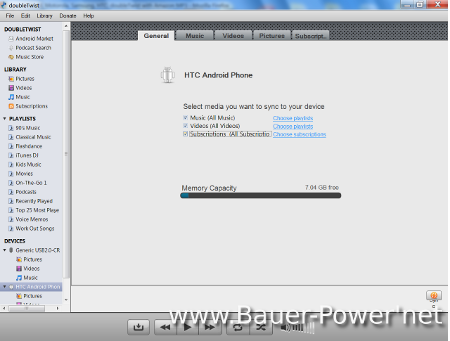
Not a problem, you see there is a really cool program for both Windows and Mac that allows you to import your music and playlist settings from iTunes, and then sync your music and playlists with your Android device. It's called DoubleTwist, and it even looks like similar iTunes! Check out this screen shot:


Syncing is easy, just install Doubletwist, then plug your Android phone into your computer and select to use your phone as a disk drive option. DoubeTwist will automatically discover your phone, and you can start syncing! DoubleTwist will also sync playlists from Windows Media player!

Besides syncing playlist, you can also search and buy music easily from Amazon's MP3 search, as well as browse the Android market for the latest apps, and finally browse and search for podcasts to sync with your Android. All from the convenience of your desktop or laptop computer! It's like iTunes for Android except better, because it was made by those no good ass clowns at Apple!

Know of a different way to sync your music to Anroid? How do you do it? Let us know in the comments!

Technorati Tags: , , , , , , ,

Oct 13, 2010

Tech Chop Episode 3 – Five Free Antiviruses

My monthly Tech Chop video was a little late this month. I had my folks in from Colorado, and they were helping me build a tree house for my kids in the back yard. When they left, my wife’s cousins came over the next day. When all the extended family left, we simply needed a break, and I didn’t have time to film an episode.

Well, I finally got it finished last night, so here it is, Episode 3 of Tech Chop! In this episode I give you my five favorite free antivirus programs! I thought I would make a video on free antivirus programs because a lot of average home users don’t know that they can protect their computers from viruses and malware for free.


If you want to download any of the antivirus programs, here are the links:

Do you have any other favorite antivirus programs? Let us know your favorites in the comments!

Oct 8, 2010

Theme of the Week #3: AlienAqua Blue Theme

This blue glossy theme or android phones is pretty sweet. Designed by parsh a professional designer it stands a bit above other themes with a sleek look. It can be used with CyanogenMod and MetaMorph. He also offers up all his backgrounds and icons in a zip file. My favorite part of this theme is the clock widget, it’s got a steam punk mixed with Star Trek look and feel to it.


Get the Theme Here


Android-AlienAqua-Blue-Theme-5 Android-AlienAqua-Blue-Theme Android-AlienAqua-Blue-Theme-1 Android-AlienAqua-Blue-Theme-3 Android-AlienAqua-Blue-Theme-6


By FreedomChicken

Oct 6, 2010

How To Install A DPM 2010 Agent on An Untrusted Domain Controller

The company that I work for is a Microsoft Gold Partner. Now I know that I write a lot about Linux, and other stuff, but because I work for a Microsoft gold Partner, that means that I am sometimes forced to drink the Microsoft Kool-Aid. Sometimes drinking the Kool-Aid is not that bad, and can sometimes save us money.

For instance, we were up for renewal for our backup Exec licenses. To renew for each little piddly agent in order to backup our entire infrastructure it was going to cost us over $100,000. It turns out that Microsoft’s Data Protection Manager is a part of our EA agreement, so it doesn’t cost us anything extra! BOOM!

The problem with Data Protection manager though is that it really was designed for single domain operations. When you start getting into untrusted domains, things start to get complicated. Now there is a procedure for manually installing the DPM agent on untrusted domain servers which works pretty good, but the documented process for installing, and configuring the agent on an untrusted domain controller doesn’t work so well. In fact the way you are SUPPOSED to install it is by running the following from the command line on the untrusted domain controller:

DPMAgentInstaller_x86.exe FQDN.DPMSERVER.COMData Protection Manager 2010

or

DPMAgentInstaller_x64.exe FQDN.DPMSERVER.COM

The above commands work fine on a member server in an untrusted domain, but do you think it works on a Domain Controller? BULL SHIT!

When trying to connect I was getting errors similar to this on the untrusted domain controllers:

A DPM agent failed to communicate with the DPM service on FQDN.DPMSERVER.COM because access is denied. Make sure that FQDN.DPMSERVER.COM has DCOM launch and access permissions for the computer running the DPM agent (Error code: 0x80070005, full name: FQDN.DPMSERVER.COM).

and

DCOM was unable to communicate with the computer FQDN.DPMSERVER.COM using any of the configured protocols.

I did figure out how to get it working. What you have to do is simply double click on the DPMAgentInstaller_x86.exe or DPMAgentInstaller_x64.exe for 32 bit DC’s or 64 bit DC’s respectively and let the install complete. Or right-click and run-as Administrator if you have UAC enabled. Once complete reboot. For some reason if you point DPM to the DPM server during install on a domain controller it screws something up.

After reboot, run the following command like you normally would:

SetDpmServer.exe -dpmServerName FQDN.DPMSERVER.COM -isNonDomainServer –userName DpmAgentUser

After that you can attach to the untrusted DC’s successfully, and you can actually back them up!

I’m still pretty new to Data Protection Manager, so if you have some tips and suggestions I am all ears! Hit me up in the comments!

Oct 5, 2010

Configuring Google Apps With Pidgin

I have a Gmail account like most of you, but I don’t like to use it for Google Talk. Why? Because I have a lot of people in my buddy list that like to hit me up for Diggs, Stumbles, and so forth. I don’t want to block them because sometimes I need them to Digg, and Stumble stuff for me too. I don’t want to do it all the time though, and if I stay signed into Google Talk using Pidgin, then I am constantly bugged throughout my day.

Instead, I would rather stay signed into Pidgin using my Google Apps account. That way my true friends and family that have my email address can still chat with me. The problem with Pidgin and Google Apps is that it doesn’t automagically jive using the Google Talk settings. To get it to work you need to set it up like any other XMPP/Jabber server. To set it up use the following settings (Make sure to change them to match your account settings!):

Basic Tab:

Protocol: XMPP
Username: USER
Domain: DOMAIN.COM
RESOURCE: Home
Password: YOURPASSWORD

Pidgin Google Apps 

Advanced Tab:

Check Require SSL/TLS
Check Force old (port 5223) SSL
Uncheck Allow Plaintext auth over unencrypted streams

Connection Port: 5223
Connection Server: talk.google.com
File transfer proxies: talk.google.com

pidgin google Apps 2

Save your settings and you should be good to go!

Oct 4, 2010

Best Geocaching App for Android

Some of you know that I recently made the switch from my Palm Pre to my new HTC Evo 4G phone. With that change, or course comes a whole new operating system, and a whole new set of applications. I of course still wanted some of the same types of apps for my new phone, or at least similar apps that provided the same functionality. One of those being an app for Geocaching!

If you go into the Android marketplace though and search for Geocaching, of Geocache, you get the official app from Groundspeak, the company that owns Geocaching.com. That app is $9.99. I am a cheap bastard though, and since the app on my Palm Pre was free, I wanted a free app for my Android. I went down the list of other apps, but all of them pretty much sucked. None of the free ones that showed up with the above search criteria had direct access to the Geocaching.com database. You had to go to the website on your phone, and download the loc files. LAME!

Well, I pretty much said screw it, and decided to take a break from Geocaching for a bit. That was until I decided to try and fix the housing on my wife’s iPhone. You see, it had a big crack down the back, so I went on Amazon and bought her a replacement back housing piece. I then followed some instructions online on how to remove the back housing, and replace it. It didn’t work out too well. I took Humpty Dumpty apart, but I couldn’t put him back together again.

iPhone-FailAnyway, after about an hour or so of trying to get the itty-bitty screws back in, in the right order and what-not, I finally told my wife that I would buy her a new HTC Evo 4G, and that it was a better phone anyway. She reluctantly agreed, but said that it HAD to have a working Geocaching application. So once again I began to search. This time was a little bit different.

I again went to the Android market, but this time I decided to look at the comments for the Groundspeak app. There in the comments I found my answer. Everybody was raving about a free alternative that worked better than the official app. The free application is called C:GEO, and it is bar-none the best  Geocaching app I have used on a smart phone. PERIOD!

From their page:

cgeo c:geo is simple yet powerful unofficial geocaching client for Android devices. In contrast with other similar applications, c:geo doesn't require web browser nor exports. You can just go geocaching with your phone and without any home preparation or worries. Of course, you can go without paying - it's free.

The thing I love about this app that I didn’t have on the free version on my Palm Pre was the ability to log visits directly from the app! My wife’s iPhone app could do it, but she had the official Groundspeak version for her iPhone. Now on her HTC Evo, she can have the same functionality, but it doesn’t cost us a dime!

Do you geocache? Do you have an Android? What app do you use? Let us know in the comments!


Twitter Delicious Facebook Digg Stumbleupon Favorites More

 
Design by Free WordPress Themes | Bloggerized by Lasantha - Premium Blogger Themes | stopping spam