


 2:00 PM
 Thom
Thom
by Thom Hiatt, Guest Writer
Years ago my father-in-law had his house wired for internet access in each room of the house. Then came wireless routers, and he installed a G-band unit. Three years have passed and the family is tired of having some "dead spots" around the house. Plus, they wanted the benefit of sharing the printer, without having to purchase a wireless printer. Being a nice son-in-law, I offered to pick up a Wireless N router with a USB port so that they could share the family printer.
My FIL was looking for a great price, and wanted to see what Fry's had to offer. So we made our visit and I must say that the management at Fry's sure is doing something better than in years past. I've avoided that dreaded F-word of a store for years simply due to their sales tactics, rude behavior, and ridiculous return policies. But things have changed a bit and they seem to be nicer over there.
 While looking at 'N' routers, we told the salesman that we needed to be able to share the printer. He pointed us to the only option in the house, the D-Link DIR-655 Wireless-N Router with SharePort. $90 plus tax.
After installing it at my FIL's house, we set up access on four laptop computers. Then it was time to plug in the printer. That's where the nightmare begins.
The router comes with SharePort software on CD, necessary for each laptop that needs access to the printer... which means that netbooks can't readily use it because they don't have CD-ROM drives.
After installing SharePort on both full-sized laptops, we started to run test prints. This is where it gets downright ridiculous.
On Laptop 'A' we type a note in Notepad and then click print. Going through the dialog boxes, we print, no problem.
Laptop 'B' now wants to print. What? You mean you want to simply be able to click the print icon and watch your beautiful masterpiece come out of the printer? No, you're not going to get off that easily, pal.
Before printing, Laptop 'B' must open the SharePort program, see that Laptop 'A' is currently connected, then right-click on the Laptop 'A' listing, then request PERMISSION to use the DAMN PRINTER, then wait for Laptop 'A' to GRANT PERMISSION. Once this has all happened, only then can I click the print icon on my document and print away, assuming it works.
In fact, it's so unusually difficult that SharePort has it's own web page with 4 tabs full of instructions. At the very bottom of tab 2, it says, "[when you are connected] This means that no other PC on your network can access it. If you have more than one PC connected to your network and want to print from that computer, you must ask for access."
WTF? So in my house, I have to ask my wife for permission to connect to the printer? Or in my office I have to ask my intern for permission?
Dear D-Link, this is just stupid. Why do you and other companies continue to make tasks so incredibly difficult? Is it that much more complex to put a print server in the router, perhaps like the Apple Airport Extreme?
What's most frustrating is that the D-Link packaging clearly promotes that you can share your printer, but fails to tell you that it will be a pain in the ass to do so. It's also frustrating that the Fry's salesman didn't know enough to warn us.
So the $90 D-Link is going back to the store, for a refund. And now my father in law will need to decide if he wants to 1) buy an Aiport Extreme for $180, or 2) buy a cheaper wireless router and upgrade to a wireless all-in-one printer for a total cost of around $150-200.
Bottom line: I really wish employees of brands would actually use their own products. If they did so, D-Link employees would realize how much SharePort sucks, and they would provide a better solution.
I offer a new slogan for SharePort:
"Share a printer or mass storage device! Sure, it's kind of a pain, and embarrassingly old-school technology, but it's the best we were willing to do!"
Years ago my father-in-law had his house wired for internet access in each room of the house. Then came wireless routers, and he installed a G-band unit. Three years have passed and the family is tired of having some "dead spots" around the house. Plus, they wanted the benefit of sharing the printer, without having to purchase a wireless printer. Being a nice son-in-law, I offered to pick up a Wireless N router with a USB port so that they could share the family printer.
My FIL was looking for a great price, and wanted to see what Fry's had to offer. So we made our visit and I must say that the management at Fry's sure is doing something better than in years past. I've avoided that dreaded F-word of a store for years simply due to their sales tactics, rude behavior, and ridiculous return policies. But things have changed a bit and they seem to be nicer over there.
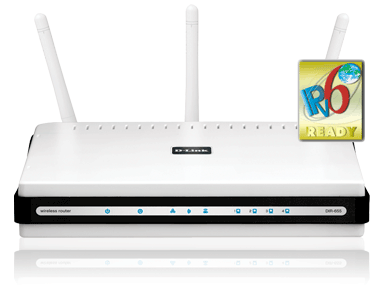
After installing it at my FIL's house, we set up access on four laptop computers. Then it was time to plug in the printer. That's where the nightmare begins.
The router comes with SharePort software on CD, necessary for each laptop that needs access to the printer... which means that netbooks can't readily use it because they don't have CD-ROM drives.
After installing SharePort on both full-sized laptops, we started to run test prints. This is where it gets downright ridiculous.
On Laptop 'A' we type a note in Notepad and then click print. Going through the dialog boxes, we print, no problem.
Laptop 'B' now wants to print. What? You mean you want to simply be able to click the print icon and watch your beautiful masterpiece come out of the printer? No, you're not going to get off that easily, pal.
Before printing, Laptop 'B' must open the SharePort program, see that Laptop 'A' is currently connected, then right-click on the Laptop 'A' listing, then request PERMISSION to use the DAMN PRINTER, then wait for Laptop 'A' to GRANT PERMISSION. Once this has all happened, only then can I click the print icon on my document and print away, assuming it works.
In fact, it's so unusually difficult that SharePort has it's own web page with 4 tabs full of instructions. At the very bottom of tab 2, it says, "[when you are connected] This means that no other PC on your network can access it. If you have more than one PC connected to your network and want to print from that computer, you must ask for access."
WTF? So in my house, I have to ask my wife for permission to connect to the printer? Or in my office I have to ask my intern for permission?
Dear D-Link, this is just stupid. Why do you and other companies continue to make tasks so incredibly difficult? Is it that much more complex to put a print server in the router, perhaps like the Apple Airport Extreme?
What's most frustrating is that the D-Link packaging clearly promotes that you can share your printer, but fails to tell you that it will be a pain in the ass to do so. It's also frustrating that the Fry's salesman didn't know enough to warn us.
So the $90 D-Link is going back to the store, for a refund. And now my father in law will need to decide if he wants to 1) buy an Aiport Extreme for $180, or 2) buy a cheaper wireless router and upgrade to a wireless all-in-one printer for a total cost of around $150-200.
Bottom line: I really wish employees of brands would actually use their own products. If they did so, D-Link employees would realize how much SharePort sucks, and they would provide a better solution.
I offer a new slogan for SharePort:
"Share a printer or mass storage device! Sure, it's kind of a pain, and embarrassingly old-school technology, but it's the best we were willing to do!"
 Click on


