1:00 AM
 Paul B
This post is going to be relatively small and quick, but I thought I would put it out there because I had the damnedest time getting the Global Address list in Evolution to work in Ubuntu 9.04.
First off let me say that I hate Evolution. I don't use it on my Linux machines at home at all! If only someone would make a good OWA plugin for Thunderbird, then things would be better! Until then, Evolution is the only Exchange game for 'nix systems in town.
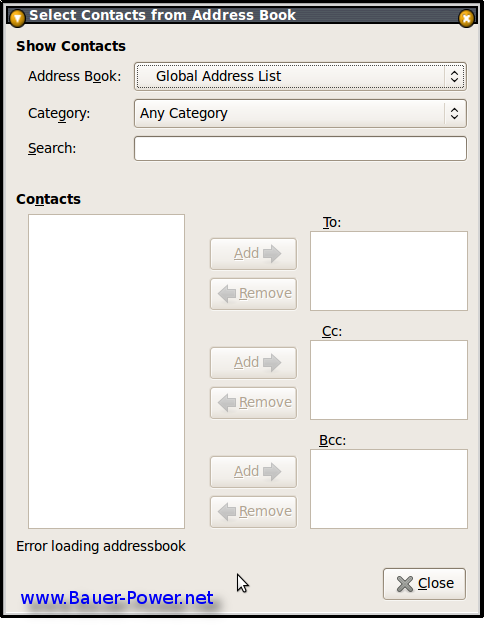
So back to my problem. I could not access the Global Address List! No matter what I put in, I would get an error saying that Evolution couldn't access the Global address list. Depending where I was in Evolution, here are the errors i got:
Or I would get this error:
It was my fault though, I mistakenly thought that I should be putting in the FQDN of the Exchange server were you input the URI for the Global Catalog Server. I also read somewhere that you are supposed to put the URL of the OWA server. None of those worked. What did work though was putting in the FQDN of the local Domain Controller!
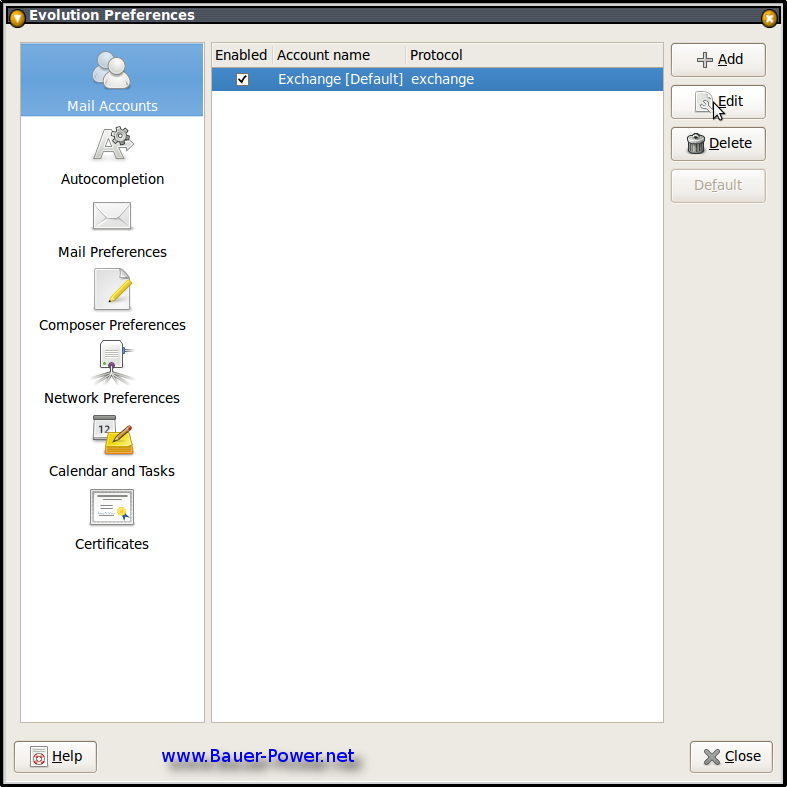
If you don't know where to do that, click on Edit > Preferences. Select your Exchange account and press the Edit button.
Click on the Receiving Options Tab, and under Global Catalog Server Name, input the FQDN of your local Domain Controller then click OK. You will have to restart Evolution for the changes to take effect.
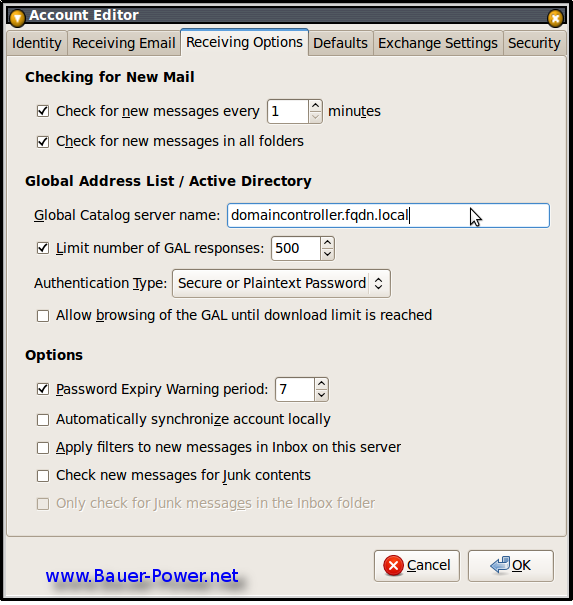
After I did that, I was able to access the GAL, and grab contacts straight from Active Directory!
Now I believe this only works behind the corporate firewall. I am not quite sure what to do if you are wanting to access Exchange email from home on your Linux box. If you have gotten the GAL to open from outside of the network, hit me up in the comments to let me know what you did!
First off let me say that I hate Evolution. I don't use it on my Linux machines at home at all! If only someone would make a good OWA plugin for Thunderbird, then things would be better! Until then, Evolution is the only Exchange game for 'nix systems in town.
So back to my problem. I could not access the Global Address List! No matter what I put in, I would get an error saying that Evolution couldn't access the Global address list. Depending where I was in Evolution, here are the errors i got:
Error Loading Address Book
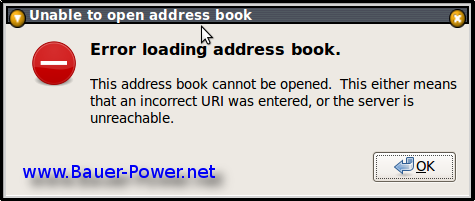
Or I would get this error:
Error Loading Address book.
This address book cannot be opened. This either means that an incorrect URI was entered, or the server is unreachable.
It was my fault though, I mistakenly thought that I should be putting in the FQDN of the Exchange server were you input the URI for the Global Catalog Server. I also read somewhere that you are supposed to put the URL of the OWA server. None of those worked. What did work though was putting in the FQDN of the local Domain Controller!
If you don't know where to do that, click on Edit > Preferences. Select your Exchange account and press the Edit button.
Click on the Receiving Options Tab, and under Global Catalog Server Name, input the FQDN of your local Domain Controller then click OK. You will have to restart Evolution for the changes to take effect.
After I did that, I was able to access the GAL, and grab contacts straight from Active Directory!
Now I believe this only works behind the corporate firewall. I am not quite sure what to do if you are wanting to access Exchange email from home on your Linux box. If you have gotten the GAL to open from outside of the network, hit me up in the comments to let me know what you did!